
|
|
|
|
|
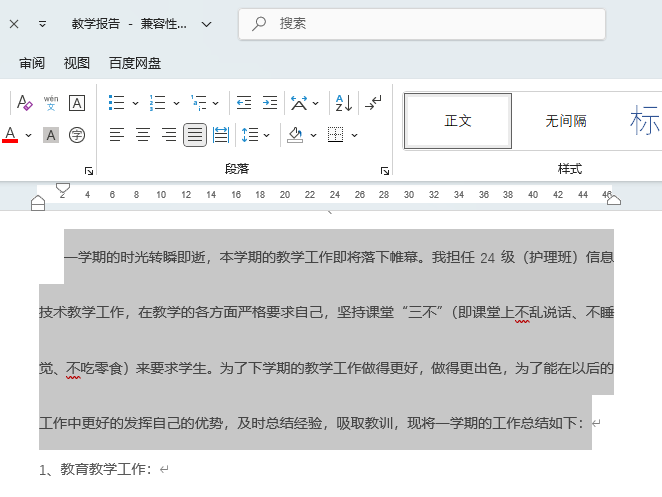
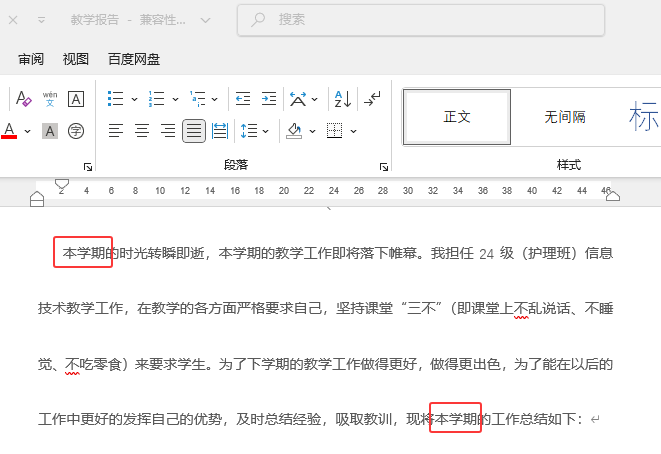
word文档怎么批量替换文字的详细方法: 1、打开word2024软件,打开做好的文档,选择要替换的内容。
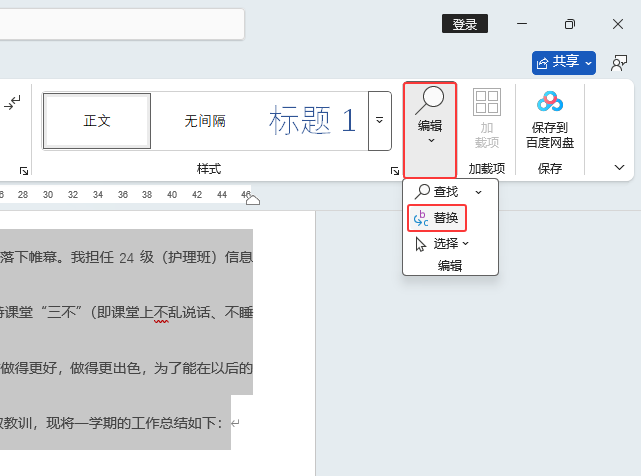
2、然后点击编辑菜单,再点击替换选项。
3、弹出替找和替换面板,查找内容:一学期,替换为:本学期,点击全部替换。
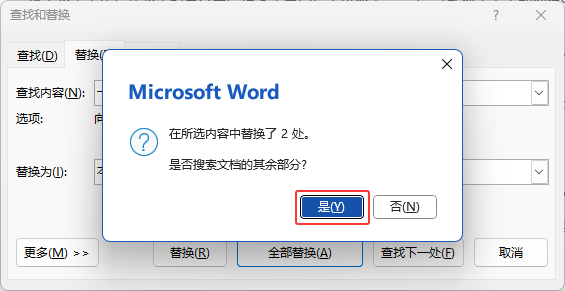
4、然后点击【是】。
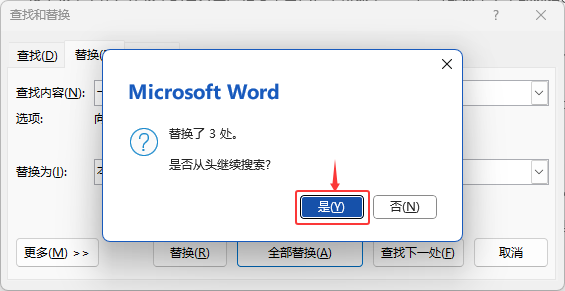
5、再点击【是】。
6、再点击【确定】。
7、替换好了,再点击关闭即可。
8、这样一学期就批量替换好了本学期。
|
|
|
Copyright @ 2006-2024 rjzxw.com Inc All Rights Reserved. 软件自学网 版权所有
联系我们
赣ICP备17006577号-1  赣公网安备 36082102000008号